Customize Waterfox controls, buttons and toolbars - Waterfox Support
Note: There are other ways to customize Waterfox. For example, you can add features to Waterfox with add-ons and you can customize the New Tab page . Waterfox’s toolbar provides easy access to common features. Do you miss something you use a lot? The toolbar is easy to customize. Is there something you don’t use all the time? Try adding it to the overflow menu. We’ll show you how.
Customize the overflow menu or the toolbar
You can change the items that appear in the overflow menu or your toolbar.
- Click the menu button and choose
 Customize….
- A special tab will open which allows you to drag and drop items in or out of the overflow menu and the toolbar. Feel free to experiment with what works best for you. You can always start over by clicking the Restore Defaults button at the bottom of the screen.
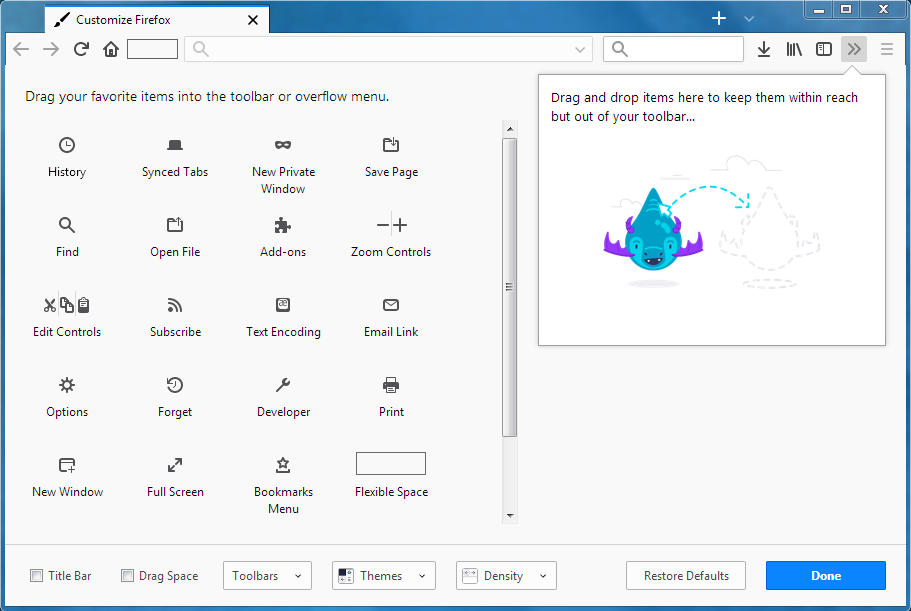
- A special tab will open which allows you to drag and drop items in or out of the overflow menu and the toolbar. Feel free to experiment with what works best for you. You can always start over by clicking the Restore Defaults button at the bottom of the screen.
- When you are done, click the Done button.
Tip
Turn on the Title bar, Menu bar or Bookmarks toolbar
- Click the menu button and choose Customize….
- To turn on the Title bar: Put a check mark next to Title Bar in the lower left.
- To turn on the Menu bar or Bookmarks toolbar: Click the Toolbars dropdown menu at the bottom of the screen and choose the toolbars you want to display.

- Click the Done button.
Having problems?
Try restoring the default set of buttons and toolbars by clicking the Restore Defaults button when you are in the customize mode. If that doesn’t solve the problem, try these:
Copyright and Licensing
Modified from Customize Firefox controls, buttons and toolbars . Original by Mozilla Contributors . Licensed under the CC BY-SA 3.0 .