Diagnose Waterfox issues using Troubleshoot Mode - Waterfox Support
Troubleshoot Mode runs Waterfox with some features and customizations disabled ( see below for details). If you’re having a problem in Waterfox that does not occur in Troubleshoot Mode, the cause of the problem is one of the disabled items.
How to start Waterfox in Troubleshoot Mode
Click the menu button , click Help, select Troubleshoot Mode… and click Restart in the Restart Waterfox in Troubleshoot Mode? dialog.
Info
You can also start Waterfox in Troubleshoot Mode by holding down the Shift key while starting Waterfox.
Troubleshoot Mode window
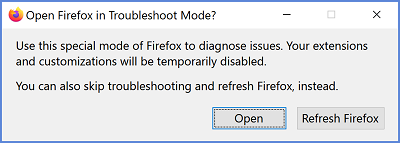
Choose one of these options:
- Click Open to start Waterfox with a default theme, your extensions disabled and some other features and customizations turned off. These changes are temporary. When you leave Troubleshoot Mode and start Waterfox normally, your add-ons and other settings will return to the state they were in before you entered Troubleshoot Mode.
- Click Refresh Waterfox to restore Waterfox to its factory default state while saving your essential information. These changes are permanent. Before you choose this option, see Refresh Waterfox - reset add-ons and settings for more information.
Diagnosing problems in Troubleshoot Mode
After you start Waterfox in Troubleshoot Mode, test its behavior and see if the problem goes away.
The problem happens in Troubleshoot Mode
If the problem still happens in Troubleshoot Mode, it is not being caused by an extension or theme. Other possible causes include changes made to Waterfox preference settings, which are not disabled in Troubleshoot Mode. See the following articles for solutions:
- Troubleshoot and diagnose Waterfox problems
- Reset Waterfox preferences to troubleshoot and fix problems
The problem does not happen in Troubleshoot Mode
If the problem does not happen in Troubleshoot Mode, the most likely cause is an extension, theme or hardware acceleration. See this article for solutions:
Exiting Troubleshoot Mode
- Click the Waterfox menu and select Exit.
- Start Waterfox as you normally would.
Info
If Waterfox keeps starting in Troubleshoot Mode, see Waterfox is stuck in Troubleshoot Mode .
What does Troubleshoot Mode disable?
- Add-ons (extensions and themes)
- Hardware acceleration
- Site Isolation (Fission)
- Window and sidebar size and position settings
- userChrome and userContent customizations
- JavaScript Just-in-time (JIT) compiler
Based on information from Safe mode (mozillaZine KB)
Copyright and Licensing
Modified from Diagnose Firefox issues using Troubleshoot Mode . Original by Mozilla Contributors . Licensed under the CC BY-SA 3.0 .