How do I set up Sync on my computer? - Waterfox Support
Caution
Mozilla are in no way affiliated with Waterfox or BrowserWorks. You are bound by the terms and conditions and privacy policy set out by Mozilla in using their service to Sync your Waterfox profile data.
A Mozilla account lets you sync your data and preferences (such as your bookmarks, history, passwords, open tabs and installed add-ons) across all your devices.
Create a Mozilla account
You will need a Mozilla account to set up sync. To create an account:
- Click the menu button to open the menu panel.
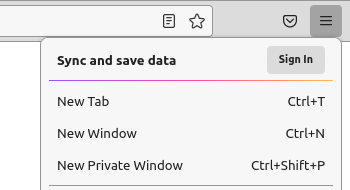
- Click the Sign In button next to Sync and save data.
- The Mozilla accounts sign-in page will be open in a new tab.
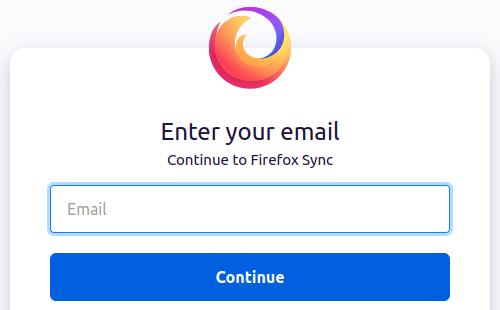
- The Mozilla accounts sign-in page will be open in a new tab.
- Enter your email and click Continue.
- Fill out the form to create an account.
- Take note of the email address and password you used: You’ll need them to sign in.
- Mozilla accounts will send you a confirmation email. Use the verification link or code to confirm your account.
- Click your Mozilla account email or display name (you might need to sign in first).
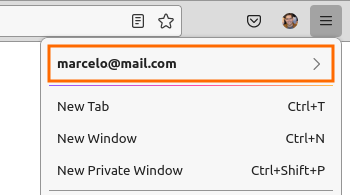
- Click Sync Now.
Info
To bypass the prompt asking you to connect another device, if shown during the sign-in process, simply open a new tab or window.
Choose what information to sync
See How do I choose what information to sync on Waterfox?
Connect additional devices to Sync
A device could be a mobile device (such as a smartphone or tablet), a desktop computer, or another Waterfox profile . For more on mobile devices, see:
- Android phones and tablets: Sync bookmarks, tabs, history and passwords on Android
To connect another desktop computer or profile, just sign in and let Waterfox Sync do the rest. To sign in, you’ll need the email address and password you used in the previous section.
- Open Waterfox on the computer or profile you want to sync.
- Click the menu button , then click the Sign In button next to Sync and save data and sign in.
* If you’re already signed in (see
How do I know the status of my sync? ) click Sync Now to
start syncing immediately.
Disable Sync for previously synced devices
For additional information, see Disable Browser Sync .
Copyright and Licensing
Modified from How do I set up Sync on my computer? . Original by Mozilla Contributors . Licensed under the CC BY-SA 3.0 .