Remove a synced device from Mozilla Accounts - Waterfox Support
Caution
Mozilla are in no way affiliated with Waterfox or BrowserWorks. You are bound by the terms and conditions and privacy policy set out by Mozilla in using their service to Sync your Waterfox profile data.
Sync allows you to sync your bookmarks, logins and browsing information across different devices. When you’re no longer using a device, you can remove it from your Mozilla account and delete its associated browsing information, if you choose.
Info
If you just want to disable Sync for a device without signing out of your Mozilla account, see Disable Waterfox Sync .
- Open Waterfox on the computer you want to disconnect.
- Click the menu button on the toolbar.
- Click Mozilla Account (or sign in if your email address isn’t showing).
- Click Manage Account.
- In the page that opens, scroll down to find the device you want to remove.
- Click Sign out next to that device.
- A prompt will ask you to confirm that you want to disconnect.
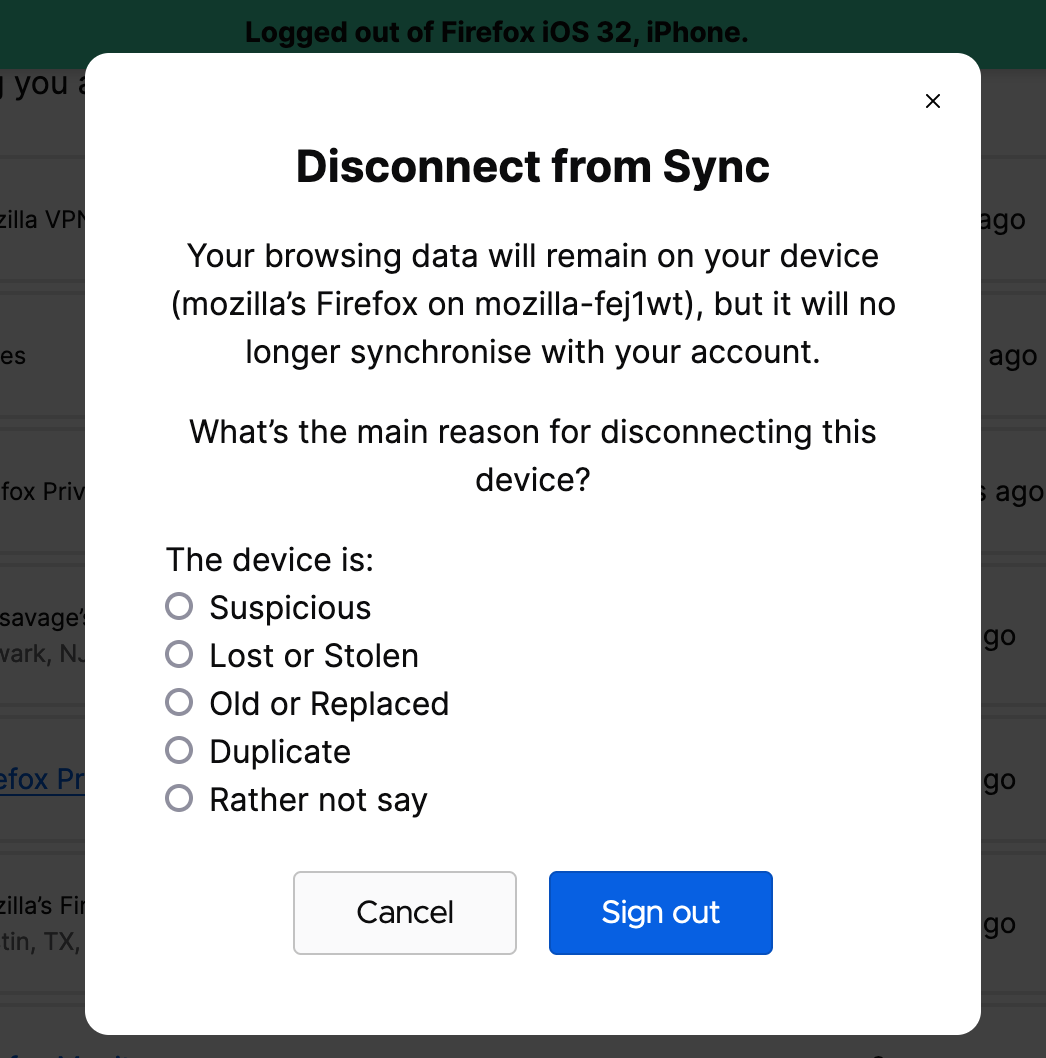
- A prompt will ask you to confirm that you want to disconnect.
- Click the Sign out button to confirm
Waterfox will disconnect from your account but won’t delete any browsing information.
Copyright and Licensing
Modified from Remove a synced device from Firefox Accounts . Original by Mozilla Contributors . Licensed under the CC BY-SA 3.0 .