Use themes to change the look of Waterfox - Waterfox Support
A theme is a type of Waterfox add-on that changes the visual appearance of Waterfox. This article describes how to find, install and manage themes in Waterfox.
What are themes?
A theme changes the appearance of Waterfox, such as the color scheme and background image of the toolbars.
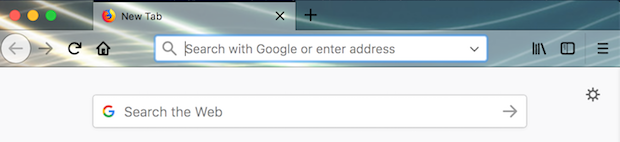
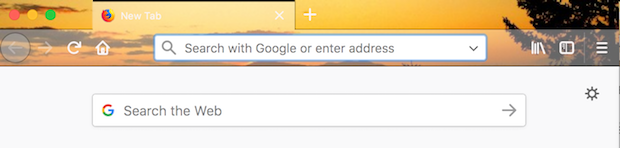
Waterfox comes with a default System theme and optional Light, Dark and Alpenglow themes but you can always install new themes.
Info
All themes are lightweight (background) themes. Complete themes are no longer supported. See Built-in themes in Waterfox - alternative to complete themes .
Installing themes
-
Click the menu button <InlineIcon src=“/assets/docs/icons/menu.svg” alt=“menu button” />, click Add-ons and Themes and select Recommendations or Themes.
-
Scroll through the suggested themes or visit addons.mozilla.org to browse more themes.
-
Click on the theme’s author to see more information about it.
-
Click the + Install Theme button.
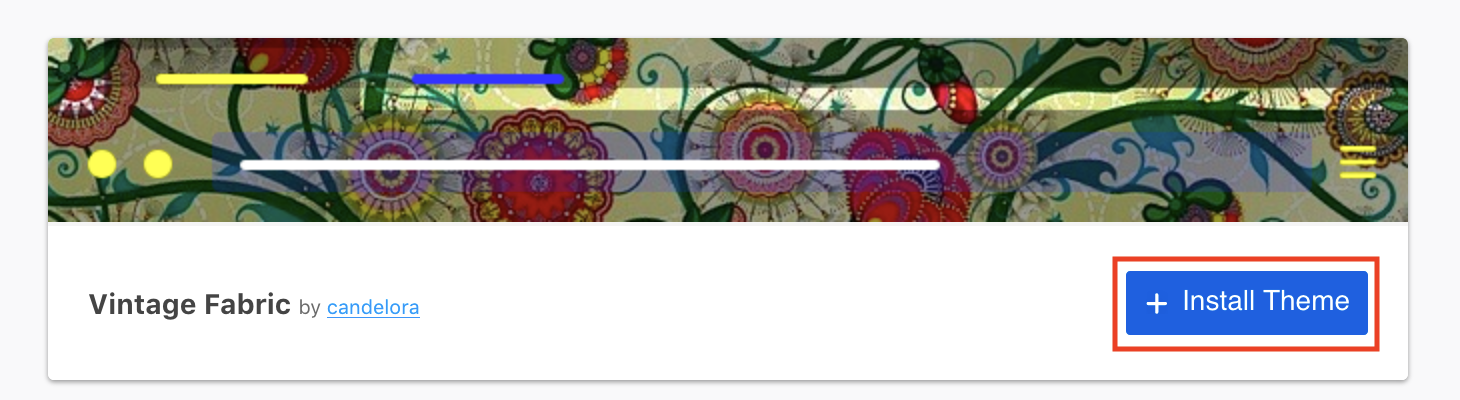
- To install a theme from addons.mozilla.org , click on the theme and select the + Install Theme button on the resulting page.
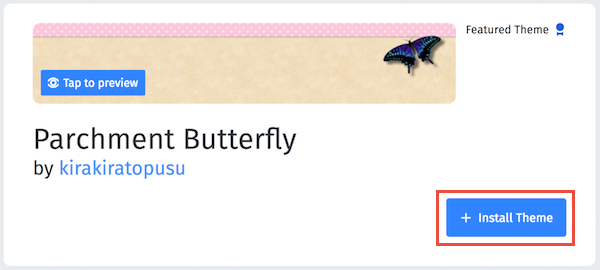
Waterfox will download the requested theme and may notify you that it has been installed.
- To install a theme from addons.mozilla.org , click on the theme and select the + Install Theme button on the resulting page.
Managing themes
Click the menu button <InlineIcon src=“/assets/docs/icons/menu.svg” alt=“menu button” />, click Add-ons and Themes and select Themes.
- The theme being used will be shown at the top, under Enabled.
- Other available themes will be listed beneath, under Disabled.
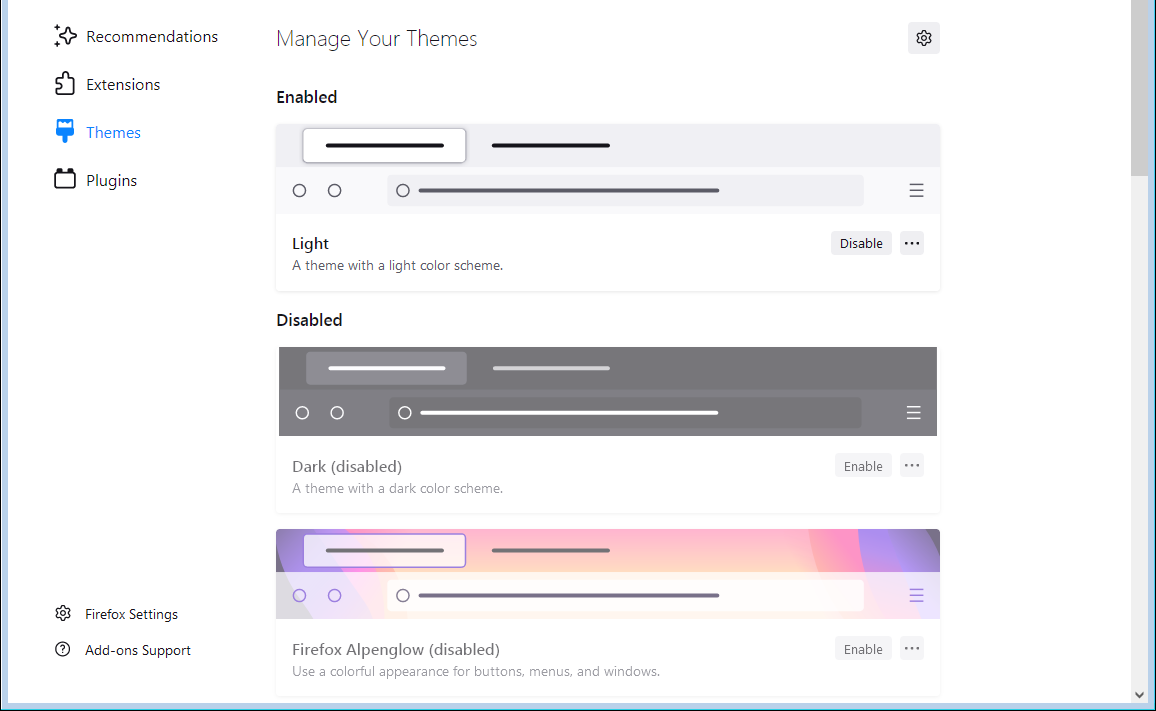
Reset theme to default
- Click the menu button <InlineIcon src=“/assets/docs/icons/menu.svg” alt=“menu button” />, click Add-ons and Themes and select Themes.
- If the Enabled theme is an optional or added theme, it will have a Disable option.
- Click Disable. The default System theme will be enabled.
Switch themes
- Click the menu button <InlineIcon src=“/assets/docs/icons/menu.svg” alt=“menu button” />, click Add-ons and Themes and select Themes.
- Scroll through the list of themes.
- Click Enable to use that theme.
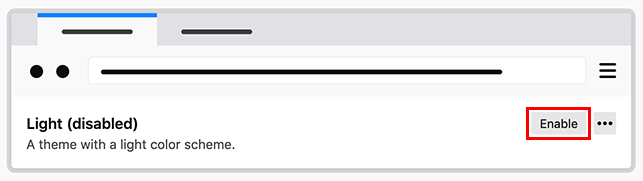
Remove themes
Info
You cannot remove themes that come with Waterfox (System, Light, Dark, Alpenglow themes) but you can disable them by switching themes or resetting the default theme (see above).
To remove an installed theme that you previously added to Waterfox:
- Click the menu button <InlineIcon src=“/assets/docs/icons/menu.svg” alt=“menu button” />, click Add-ons and Themes and select Themes.
- Click the ellipsis (3-dot) icon that displays for the theme that you want to remove and then select Remove.
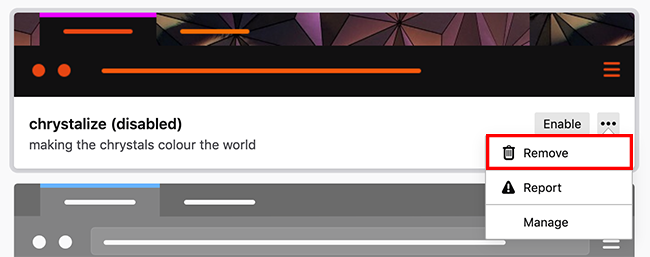
Info
If you remove the Enabled theme, the default System theme will become enabled.
If you are not able to remove a theme, see Cannot remove an add-on (extension or theme) .
Troubleshooting
- If you have a problem with Waterfox, it may be caused by your theme or your theme’s interaction with other add-ons. For troubleshooting instructions, see Troubleshoot extensions, themes and hardware acceleration issues to solve common Waterfox problems .
- If you cannot install a theme, see Unable to install add-ons (extensions or themes) .
Copyright and Licensing
Modified from Use themes to change the look of Firefox . Original by Mozilla Contributors . Licensed under the CC BY-SA 3.0 .