
Waterfox ad blocking
Waterfox includes a built-in blocker for ads, trackers, pop-ups, overlays and other unwanted requests. It is enabled by default, along with a blocked-request badge and an exception for configured Waterfox search partner pages.
These instructions apply to Waterfox on desktop.
Open the Waterfox ad blocking settings
- Open the Waterfox menu and select Settings.
- Select Ad Blocking in the sidebar.
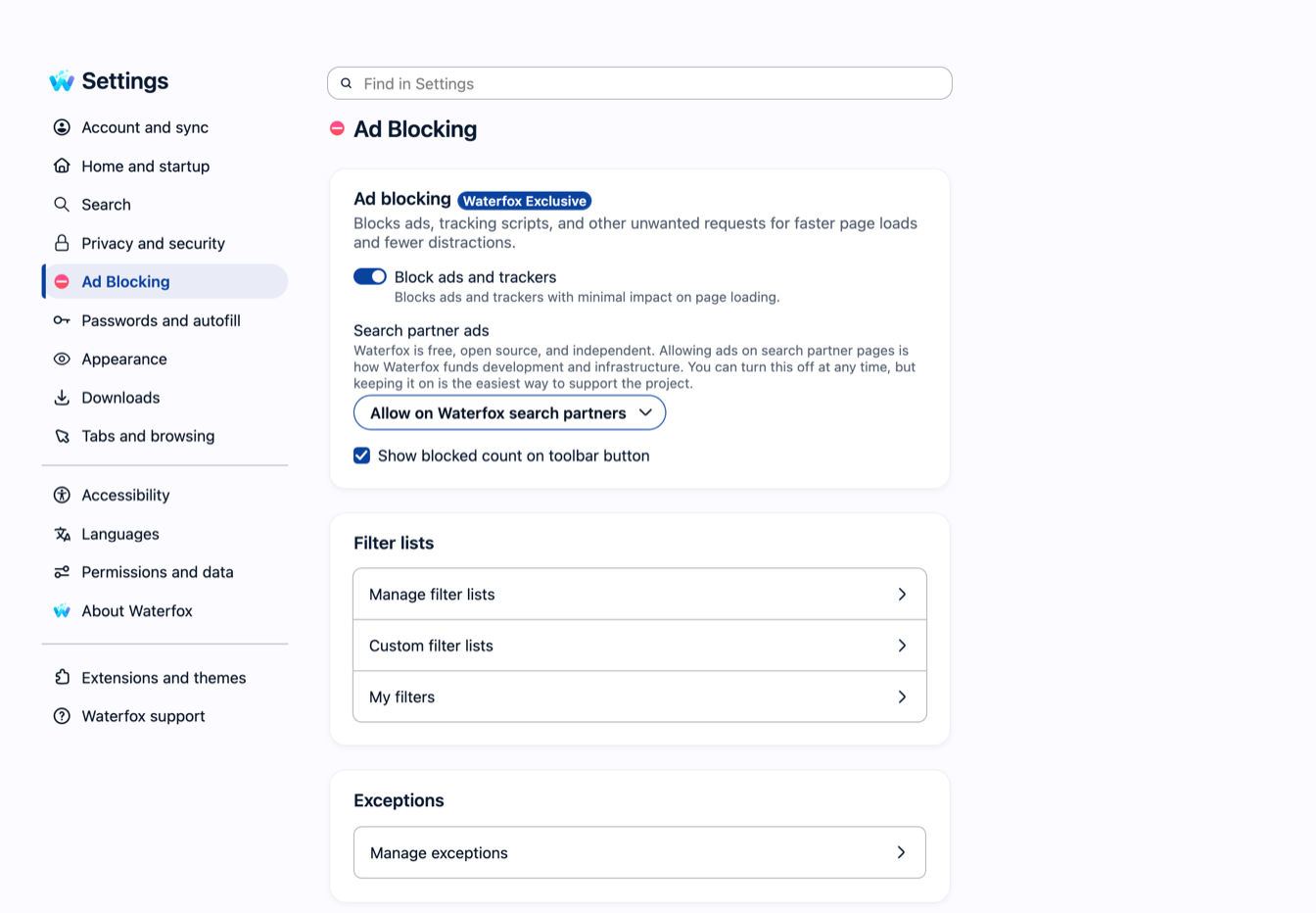
Choose how Waterfox blocks content
The Ad blocking section contains these controls:
- Block ads and trackers turns the built-in blocker on or off. Turning it off stops Waterfox from applying its filter lists, but it does not affect content-blocking extensions.
- Search partner ads chooses whether the built-in blocker allows ads on configured Waterfox search partner pages or blocks there too. Allowing them is the default and helps fund Waterfox development and infrastructure.
- Show blocked count on toolbar button shows or hides the current page’s blocked-request count on the Ad blocking toolbar button. This is on by default. The page count resets after a top-level navigation.
The search-partner and badge controls are unavailable while the built-in blocker is off.
Manage filter lists
Under Filter lists, Waterfox provides three tools:
- Manage filter lists lets you search the catalog and enable or disable lists in the Default, Privacy, Annoyances, Optional and Regional categories. Waterfox enables its bundled core, privacy and cookie-annoyance lists by default. A matching regional list is also enabled automatically for supported browser languages. Select Refresh Now to download current copies, then select Save Changes after changing which lists are active.
- Custom filter lists adds or removes remotely hosted lists. Waterfox accepts only valid HTTPS addresses and applies these lists alongside the catalog lists.
- My filters edits your own rules using standard uBlock Origin static filter syntax. You can import a text file, export the current editor contents, or save changes directly. Importing replaces the text currently in the editor.
Adding more lists can increase blocking, but overlapping or aggressive rules can slow page processing or break site features. A custom list is controlled by its publisher, and refreshing it contacts that list’s host. Add only lists you trust.
Allow a website
Select Manage exceptions under Exceptions, enter the exact website address and add it to the list. Waterfox then leaves its built-in ad blocking off for that site during normal browsing.
You can also use the Ad blocking toolbar button on an HTTP or HTTPS page. Its panel shows what Waterfox blocked, provides a Block ads on this site switch, opens the allowlist and links back to Settings.
Exceptions in a normal window are persistent. Private windows use a separate session allowlist, which is cleared after the private session ends.
If a page breaks or another blocker is installed
If a page does not work correctly, first turn blocking off for that site and reload it. If that fixes the problem, review enabled lists before creating a broad exception.
When Waterfox detects a known ad-blocking extension, it disables the built-in blocker so both do not filter the same page. If you turn Waterfox ad blocking back on while that extension is active, Waterfox asks which blocker you want to keep. Running two blockers can cause duplicate work and site breakage.
Waterfox ad blocking reduces unwanted requests, but no filter set catches everything. It is not a replacement for safe browsing practices or system security updates.