
Waterfox browser styles and colors
Waterfox lets you choose the shape and spacing of the browser interface separately from its light, dark and color palette. Nova is the default browser style for new profiles, with System theme mode and the Default color shown initially.
These instructions apply to Waterfox on desktop.
Open the Waterfox appearance settings
- Open the Waterfox menu and select Settings.
- Select Appearance.
Changes from this page apply immediately to the current Waterfox profile.
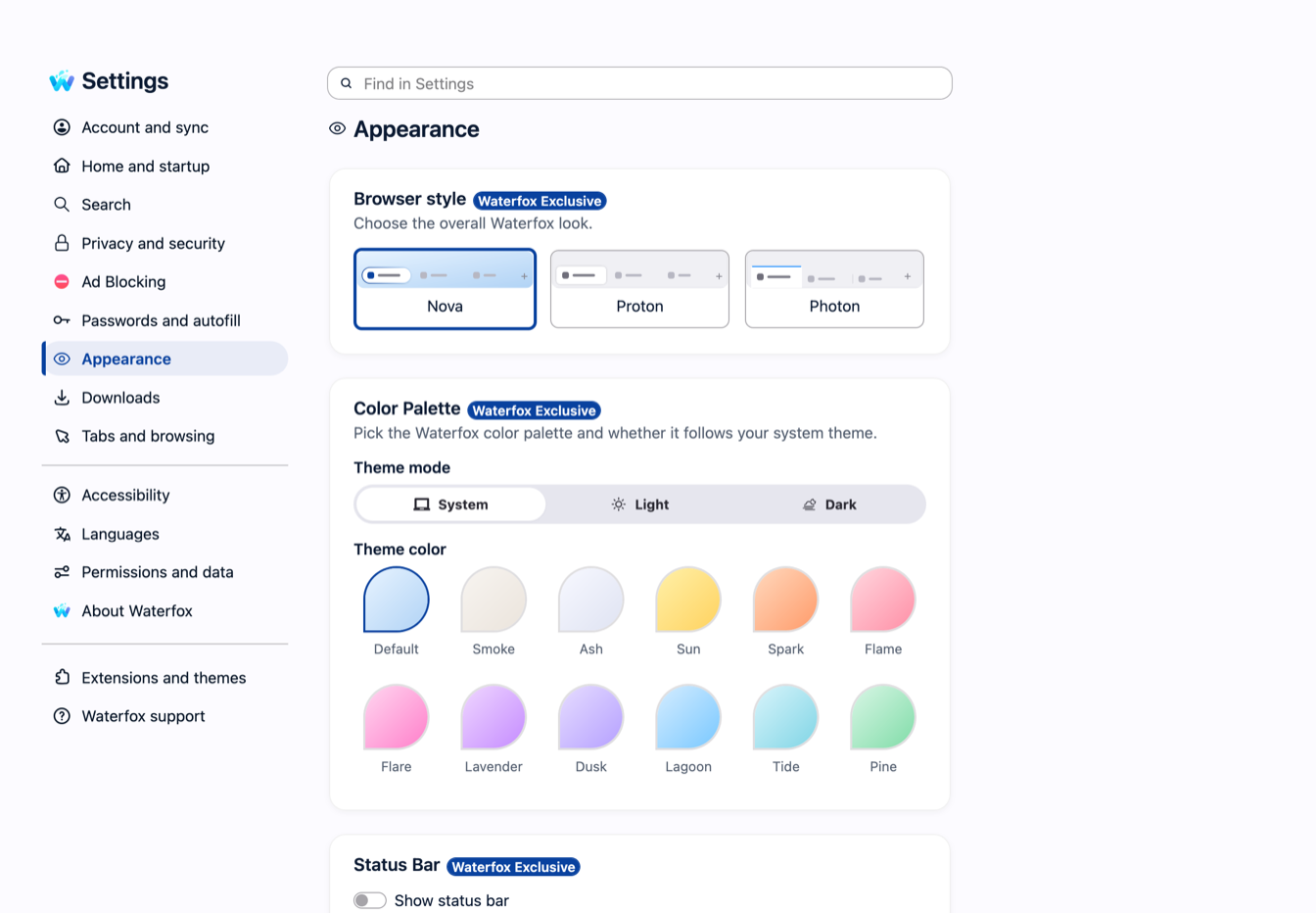
Choose a browser style
The Browser style picker changes the overall browser chrome:
- Nova uses the signature Waterfox look with the stock browser chrome. This is the default.
- Proton uses modern stock browser styling without Waterfox’s Photon chrome customizations.
- Photon uses classic Waterfox styling with refined tabs and browser chrome.
Changing style does not change your selected color palette. You can combine any browser style with a Waterfox theme mode and color.
Choose a theme mode
Under Color Palette, use Theme mode to choose:
- System follows the operating system’s light or dark appearance.
- Light keeps the Waterfox interface light.
- Dark keeps the Waterfox interface dark.
Then use Theme color to select Default, Smoke, Ash, Sun, Spark, Flame, Flare, Lavender, Dusk, Lagoon, Tide or Pine. The palette affects Waterfox interface colors, tabs, toolbars and supported in-content accents.
Waterfox applies these color controls only while the default built-in theme is active. If an add-on theme is active, Waterfox saves your mode and palette choices but lets that theme control the appearance. Your Waterfox colors take effect again after you return to the default theme.
Fine-tune the Photon style
When Photon is selected, Waterfox displays More appearance options. These controls are specific to the Photon customization layer:
- Transparent panels and menus enables transparency for both browser panels and menus.
- Hide the tab bar until you point at it keeps the tab strip out of view until the pointer reaches it.
- Hide the bookmarks toolbar until you point at it makes the bookmarks toolbar appear on pointer hover.
- Hide the sidebar until you point at it collapses the sidebar until the pointer reaches it.
- Hide the back and forward buttons when they do nothing removes each navigation button when that direction has no page to visit.
- Show the tab close button only on hover hides close buttons until you point at a tab.
- Keep a drag space above the tabs reserves an area for dragging the Waterfox window.
Auto-hide settings can make interface controls seem missing. Move the pointer to the relevant edge before changing the setting back. Custom userChrome.css rules can also override or conflict with these Waterfox controls.